1Introduction
SlotDash is the complete race software for club slot car tracks: timing via the Bepfe pulse electronics, race control (admin), a big live display (dashboard), results, rankings, records and printouts. SlotDash fully replaces the classic Rennbahnmanager (WinRBM) — the terminology (series race, slot mode, F1 mode, track call …) is deliberately the same, so WinRBM veterans will feel at home right away.
System requirements
- Windows PC (older machines are fine), screen resolution 1024×768 or higher
- Bepfe pulse electronics on a serial port (COM port)
- No internet required — SlotDash runs completely offline
- Optional: printer (default printer for silent result printing), second screen for the dashboard
All data (drivers, races, records) is kept in a local database on the race PC. Nothing is transmitted to the internet.
2Installation & Starting the Program
- Copy
SlotDash.exefrom the USB stick to any folder on the race PC (e.g.C:\SlotDash\). - Double-click
SlotDash.exe— that's all: no installation, no registration, no additional software. - SlotDash starts a local server, opens the display window in full screen (kiosk) and automatically searches for the Bepfe box.
File locations
- Database:
%APPDATA%\SlotDash\slotdash.db— survives updates of the EXE. Copying this one file is a complete backup. - Logs:
%APPDATA%\SlotDash\logs\— includingslotdash.logand the crash-safe race recordingrace_events.jsonl.
Updating to a new version
- Copy the new
SlotDash.exeover the old one (rename the old one first, e.g.SlotDash_alt.exe— it remains runnable as a fallback). - Start it — any required database adjustments run automatically, all data is preserved.
Exiting the program
In the admin, choose “Exit program” at the bottom left. SlotDash first switches off all track power (safety) and then closes all windows.
Demo version
SlotDash_Demo.exe simulates the entire box (cars, start lights, false starts) and
uses its own database — ideal for practising and testing without corrupting real
records. In addition, the demo version can play back raw recordings in real time (replay).
3Hardware Setup (Bepfe Box)
- Switch off the PC, connect the Bepfe pulse electronics to the serial port.
- Connect the power supply of the electronics, wire the photocells according to the wiring diagram.
- Switch on the PC, start SlotDash.
SlotDash searches for the box automatically: first on the last port used, then COM1, then all available ports. The ongoing search also detects the box if it is plugged in or moved to another port later. The connection status is shown at the top right of the admin (e.g. COM1 in green) and on the dashboard start screen.
Connecting manually
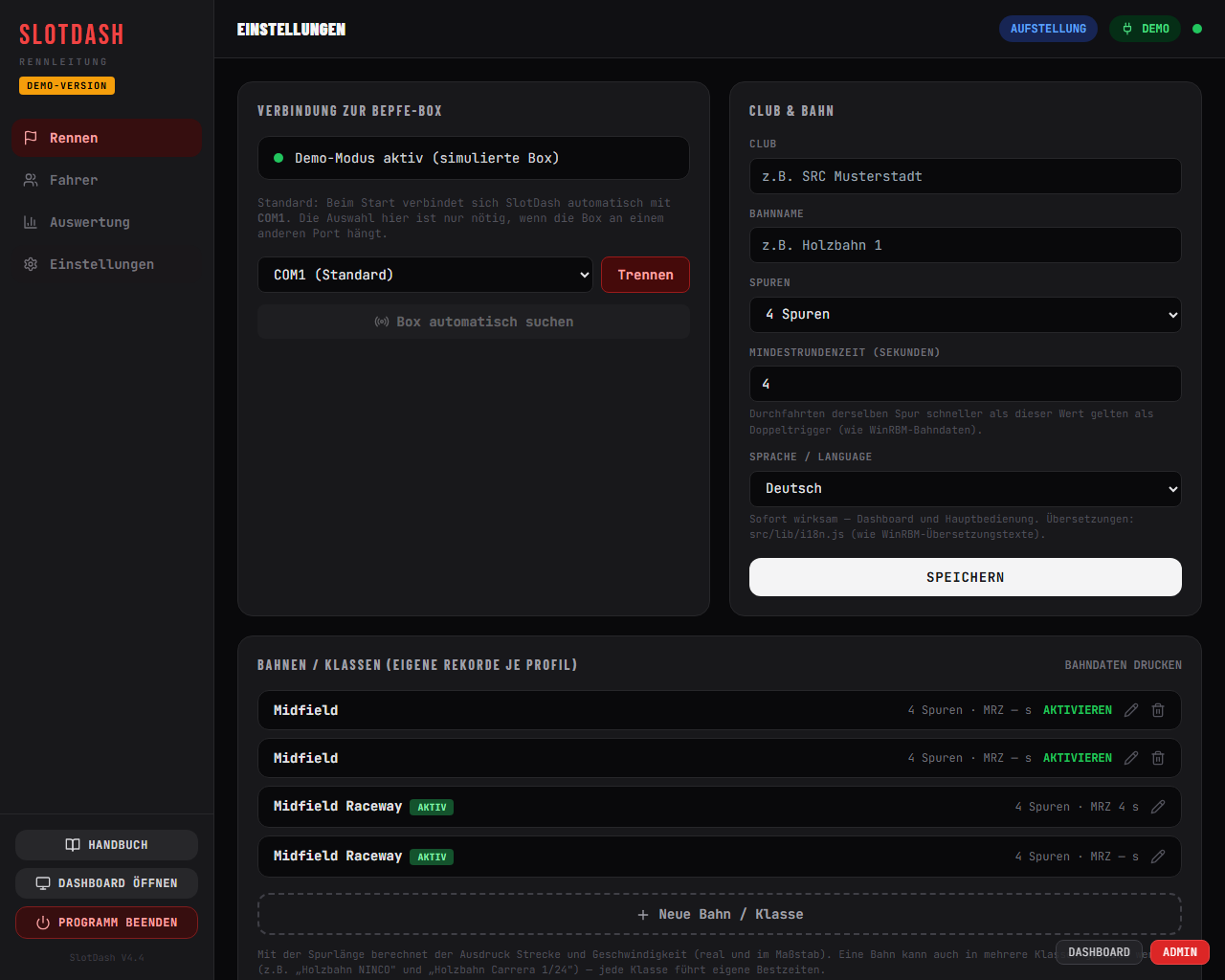
Settings → Connection to the Bepfe box: pick a port from the list and press Connect, or use “Search for box automatically”. Disconnect pauses the automatic search until you connect manually again.
Function test
- Cover/uncover the photocells one by one — in practice mode the corresponding lane counts one crossing.
- Emergency panel (chapter 12): power individual lanes and test the start light lamps.
Do not extend the serial cable between the pulse electronics and the PC — with a cable that is too long, signals are misinterpreted.
4First-Time Setup
On the very first start, SlotDash takes you straight to Settings. Set once:
- Club — appears in the title of every printout.
- Track name — the active track/class (additional profiles: chapter 11).
- Lanes — 2 to 8.
- Minimum lap time — crossings on the same lane that follow each other faster than this count as double triggers and are ignored. Enter a value just below the fastest real lap (e.g. 4.0 s).
- Language — Deutsch, English, Italiano, Español or Français; takes effect immediately.
Confirm with Save — then create the first line-up under Race.
5The Cockpit (Race Control)
The admin area is the control centre. Reached via the ADMIN button at the bottom right or by clicking the dashboard start screen. On the left the menu (Race · Drivers · Results · Settings), at the top the status bar with the race phase and box connection.
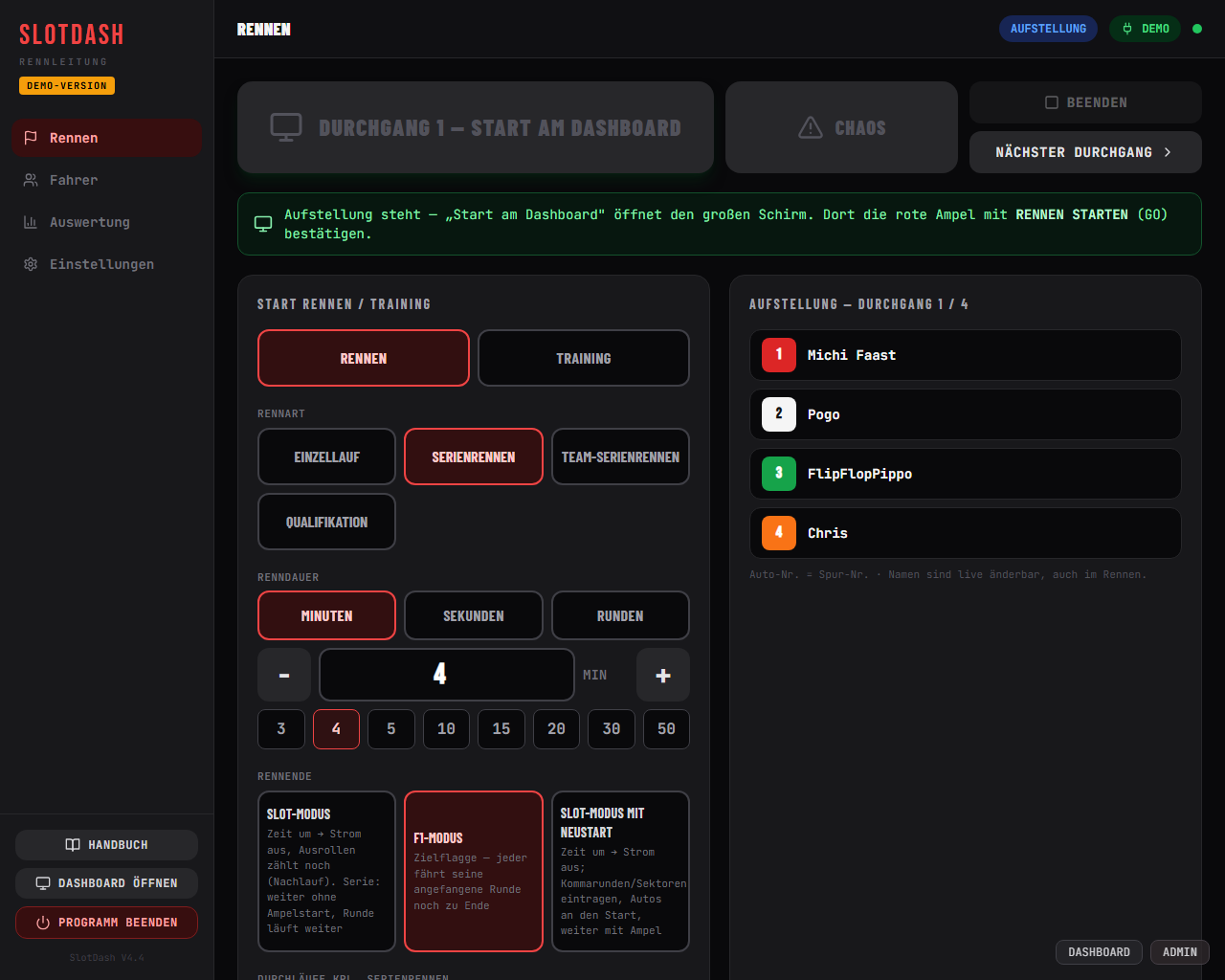
The big buttons (always at the top)
| Button | Function |
|---|---|
| Start on dashboard (green) | Becomes armed as soon as a line-up has been created. Opens the big screen — there, START RACE starts the light sequence. |
| Track call (red) | All track power off immediately, race halted. Continue releases it again (optionally with 3-2-1-GO). Can also be operated from the dashboard. |
| Stop | Hard abort after confirmation — no result, nothing is saved. |
| Next heat | Series: to the next heat (the line-up appears, drivers move lanes). |
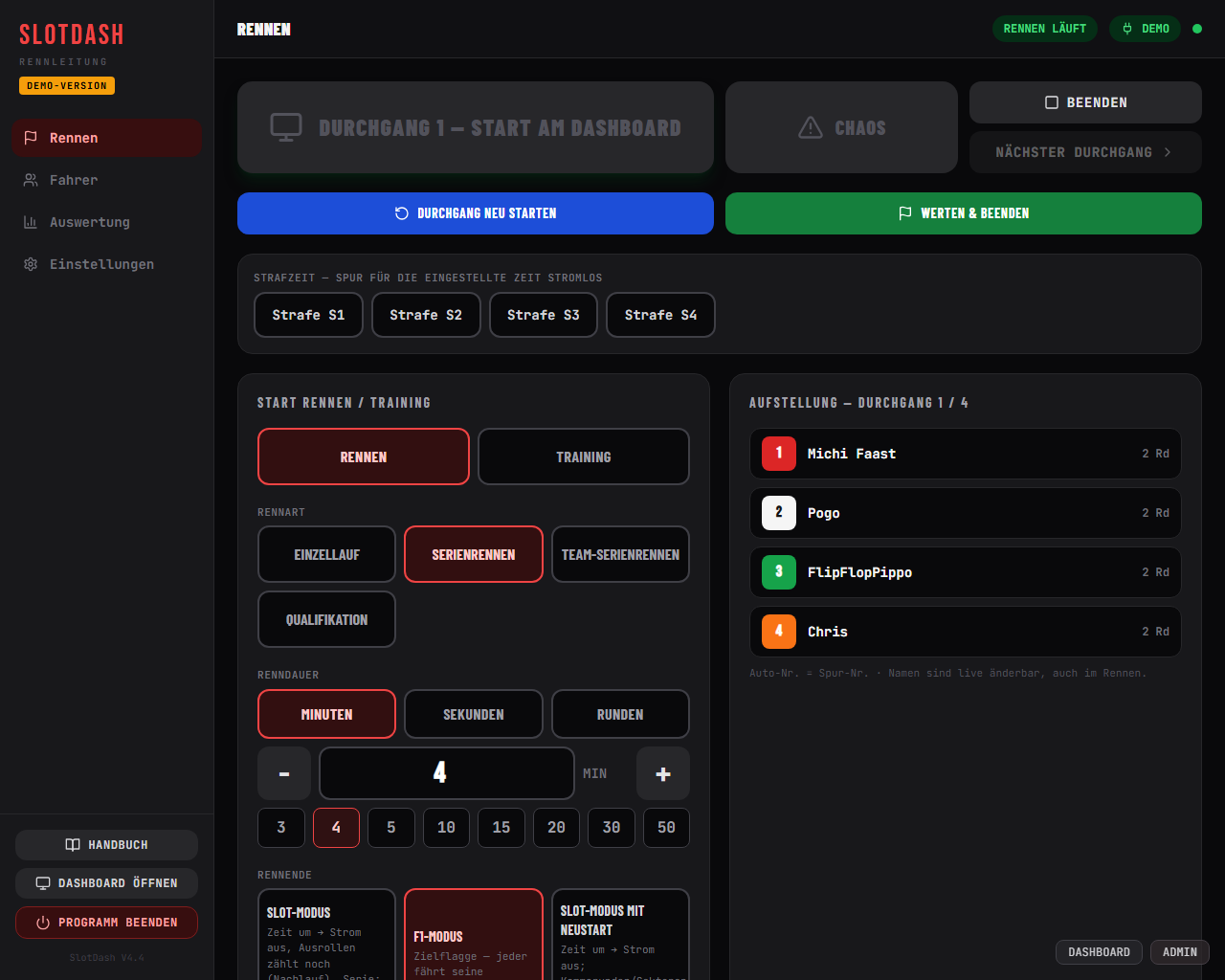
While a heat is running
- Restart heat — the running heat is discarded and restarted with the same line-up (e.g. drivers were on the wrong lanes).
- Score & finish — score the heat immediately with the current standings (e.g. after a crash).
- Penalty — one button per lane: the lane loses power for the configured time (chapter 11, “Manual penalty”). The dashboard shows PENALTY TIME on the lane.
- Live standings — table with position, laps, last and best lap.
- Penalties by key: key 1–8 (dashboard or admin) gives the lane a penalty, pressing it again revokes it. During a track call the penalty is noted (“PENALTY AFTER RESTART” with the driver's name) and takes effect on restart. In team races Shift+1–8 is the driver change.
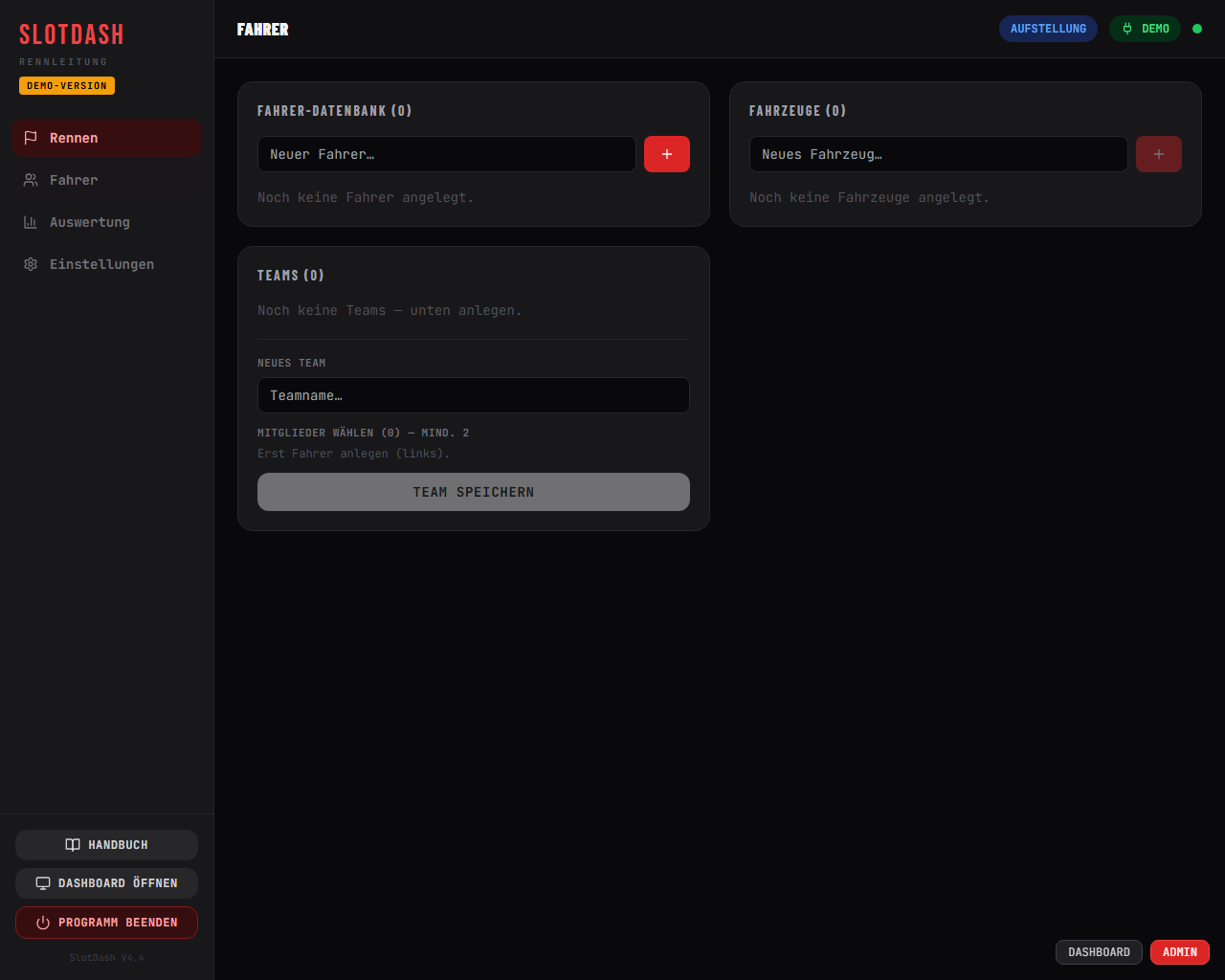
Managing drivers & teams (“Drivers” menu)
- Driver database: create, delete; each driver can be assigned a car.
- Teams: name + at least 2 members — for team series races.
- Cars: cars with up to 5 free setup fields (motor, tyres, gear ratio …).
6Setting Up a Race
Race menu, “Start race / practice” card. The layout follows the WinRBM dialog: first race or practice, then race type, race length, race end.
6.1 Race types
| Race type | How it works |
|---|---|
| Single race | One heat, drivers are assigned directly to the lanes. |
| Series race | Every driver drives every lane exactly once; the laps of all heats are added up. This evens out differences in lane length and cornering. |
| Team series race | Like a series race, but with teams — every team drives every lane once, and the team name is scored. |
| Qualifying | Each driver individually, one after another, on one lane, fixed duration, start without lights. Criterion: fastest lap. The result sorts the participant list for the race. |
| Head-to-head (2 lanes only) | Everyone races everyone on both lanes: (participants × participants) − participants heats. |
| Practice | Free (no end) or as timed practice. One click on “Start practice” is enough — line-up, start and dashboard in one (chapter 6.5). |
6.2 Race length and race end
Race length: minutes, seconds or laps — with quick-select buttons. Race end depends on the basis:
| Basis | Mode | Meaning |
|---|---|---|
| Laps | First to finish | The first driver to complete the full lap count ends the race immediately for everyone. |
| F1 mode | Chequered flag — everyone finishes the lap they are on, then their lane loses power. | |
| Everyone full distance | Everyone drives the full lap count; the time needed for it is scored. | |
| Time | Slot mode | Time up → power off immediately; coasting cars still count (overrun). In a series, racing continues without lights — the lap in progress carries on across the lane change. |
| F1 mode | Time up → chequered flag, everyone finishes their lap. | |
| Slot mode with restart (series only) | Like slot mode, but the cars return to the start and every heat begins with the lights; the lap in progress is recorded as a partial lap (chapter 9). |
6.3 Series race: participants, groups, rounds
- Select participants by clicking them in the driver list; create new drivers directly in the field.
- Sort the order with the arrow buttons — it determines the group split (fastest first → group A). After a qualifying session or a race: “Apply order”.
- Groups: With more drivers than lanes, SlotDash splits automatically (8 drivers / 4 lanes → 2 groups of 4; 7 → 4+3). Special case: exactly one driver more than lanes (e.g. 5/4) stays ONE group — a rest lane rotates through, and everyone sits out once. Racing starts with the last group; the group change (“when group finished” or “after every heat”) is set in the settings. The preview shows the split before you create the race.
- Rounds of the complete series race (1–99): run the full rotation multiple times (endurance racing). The total duration is displayed.
- Carry over the result of the last race: checkbox — the laps of the previous race keep counting (e.g. sprint + main race as one classification).
- 🎲 Shuffle: draws the order of participants or teams at random (e.g. the qualifying start order).
“Create line-up” creates the race — the line-up appears on the right and on the dashboard. Names can be changed at any time, even during the race.
6.4 Qualifying in detail
- Race type Qualifying, choose the qualifying lane and duration per driver, set participants + starting order.
- Each run starts from the dashboard without lights (“START QUALIFYING”); when time runs out, the power is switched off.
- Between drivers: Next heat (or repeat the run).
- At the end you get the ranking by fastest lap — when creating the series race, press “Apply order from qualifying”.
6.5 Practice
Practice needs neither driver names nor a lap count nor a start sequence. One click on Start practice is enough: SlotDash creates the line-up, starts and switches to the big screen — power is on immediately, no lights. Use Stop in the control bar to end it.
Practice → timed practice: set practice time and break time. When the time is up, the power goes off, the break countdown runs on the dashboard, and the practice then restarts automatically. CONTINUE starts earlier, Stop aborts.
Reset a lane: Each lane has a small round arrow on the left of its coloured header in the dashboard. Hovering over it shows “Lane reset”; a click sets laps, best lap and lap history of that lane only back to zero — e.g. for a new driver or after a setup change. The other lanes carry on unchanged, practice keeps running without interruption and the power stays on.
Queue: In practice you can optionally choose drivers. The first ones take the lanes, the rest wait — the dashboard shows “Next up: …” at the bottom. On rotation the driver on the last lane leaves, everyone moves up one lane and the next one comes onto lane 1. In timed practice this happens automatically in every break (display “Out / In”), in free practice via the “Rotation” button on the dashboard or in the cockpit. 🎲 Shuffle mixes the queue.
6.6 Team races: driver changes and stints
In a team series race each team is driven by its members in turns (teams are set up in the “Drivers” menu). SlotDash knows who is at the controller, credits every lap to that driver and measures the net driving time of each stint — track calls, breaks between heats and the time before GO do not count.
- Starting driver: In the lineup the starting driver is shown below each team. Clicking it (or “Starting driver per team” in the cockpit) selects the next one.
- Change during the race: Shift + lane number (e.g. Shift+2 for lane 2), a click on the driver name on the dashboard, or the “Driver change” card in the cockpit (where you can also choose who takes over). The race continues without interruption.
- Display: On the dashboard the driver at the controller and their stint clock are shown below the team name. If a maximum is set (chapter 11), the clock turns yellow in the last minute and then flashes red “CHANGE”.
- Team standings: In the overall result and on the printout, per team: laps, driving time, best lap and number of stints per driver, plus all stints in order. Stints that are too short or too long are marked.
7Start Procedure
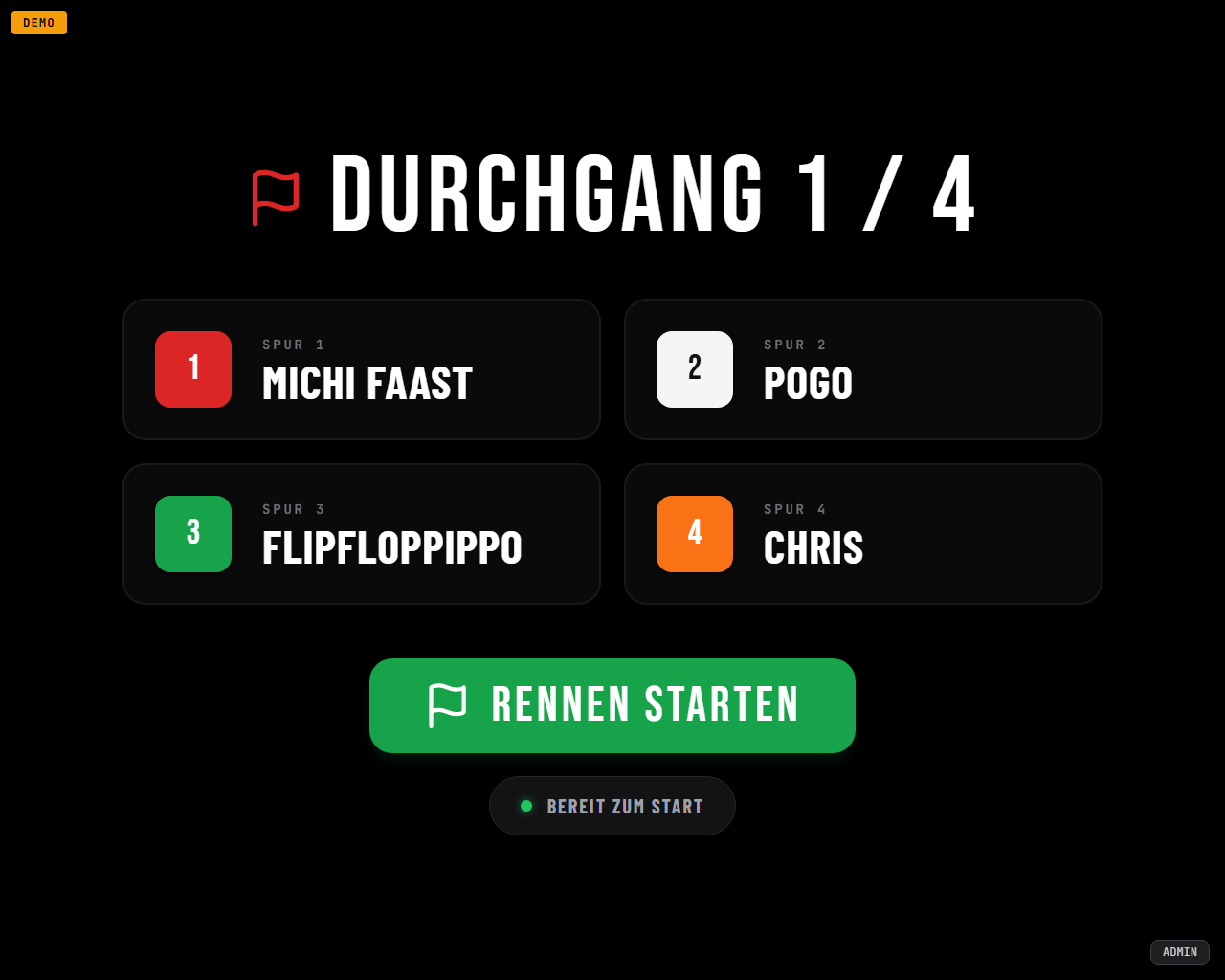
- Line-up ready → press START RACE on the dashboard.
- The red start lights come on one after another (light phase duration adjustable).
- After the last light: fixed start time (GO immediately) or random time (unpredictable hold time, as in an F1 start).
- GO — lights out, race on. With light variants that include green, the green lamp now stays lit as long as the race is running.
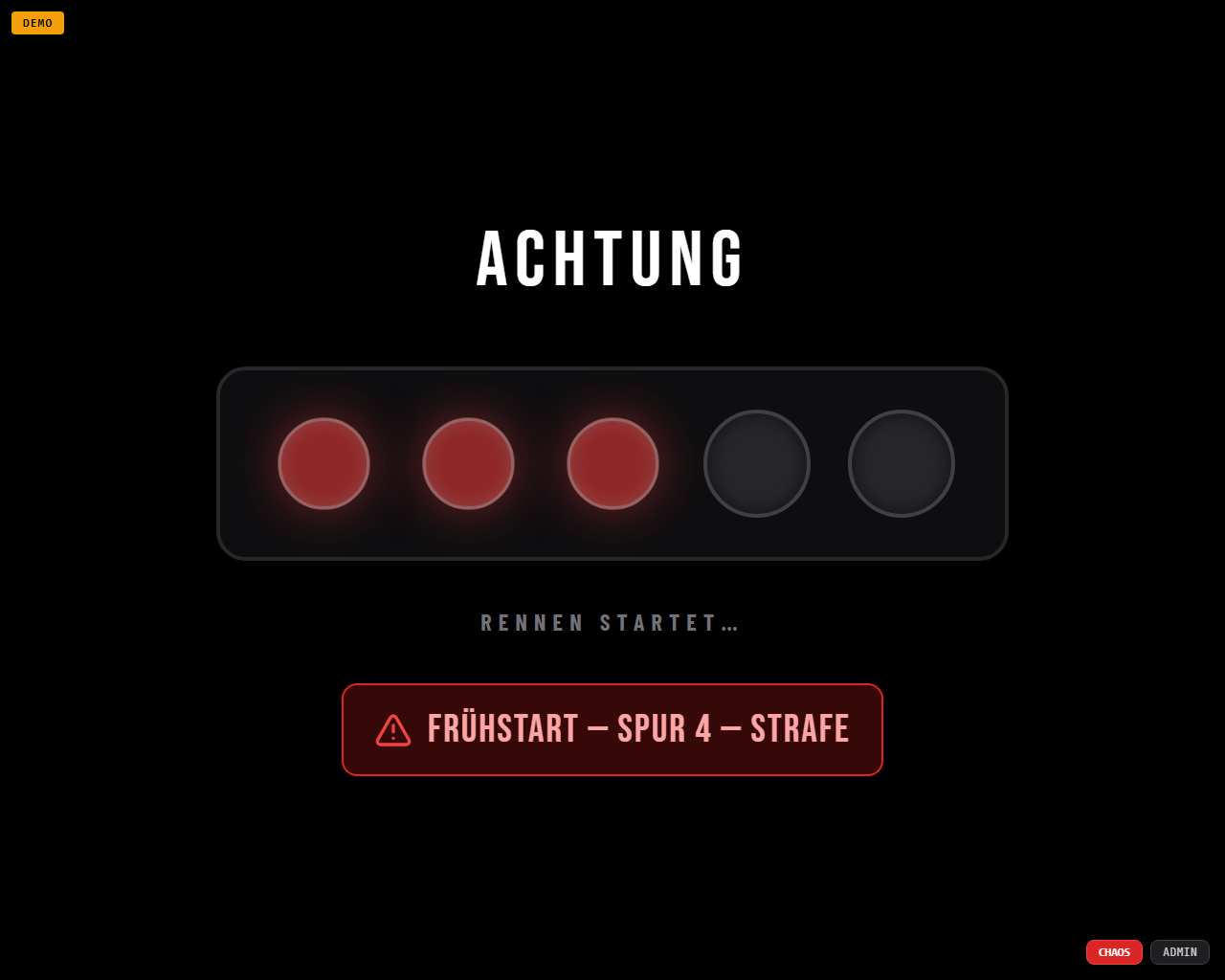
False start
If a car moves during the light phase, the configured policy applies:
- Penalty (default): The lane loses power immediately and is automatically released again after the penalty time. The standstill is visibly included in the first lap time.
- No detection: Power only comes on with GO — a false start is technically impossible.
- Abort: The start is aborted, back to the line-up.
Light variants (lamp hardware)
| Variant | Sequence |
|---|---|
| 5× red (default) | 5 red lamps one after another, all off with GO. |
| 4× red + green | 4 red one after another; with GO they go out and the green lamp (output 5) lights up. |
| 1× red / 1× green | Red (output 1) is lit for the light phase; with GO it switches to green (output 2). |
Practice and qualifying always start without lights. From heat 2 on, a slot-mode series continues without a start procedure (optionally with a big 3-2-1-GO).
8The Dashboard (Big Screen)
The dashboard is the display for drivers and spectators — one column per lane, in the official SRA lane colours. Per lane, from top to bottom:
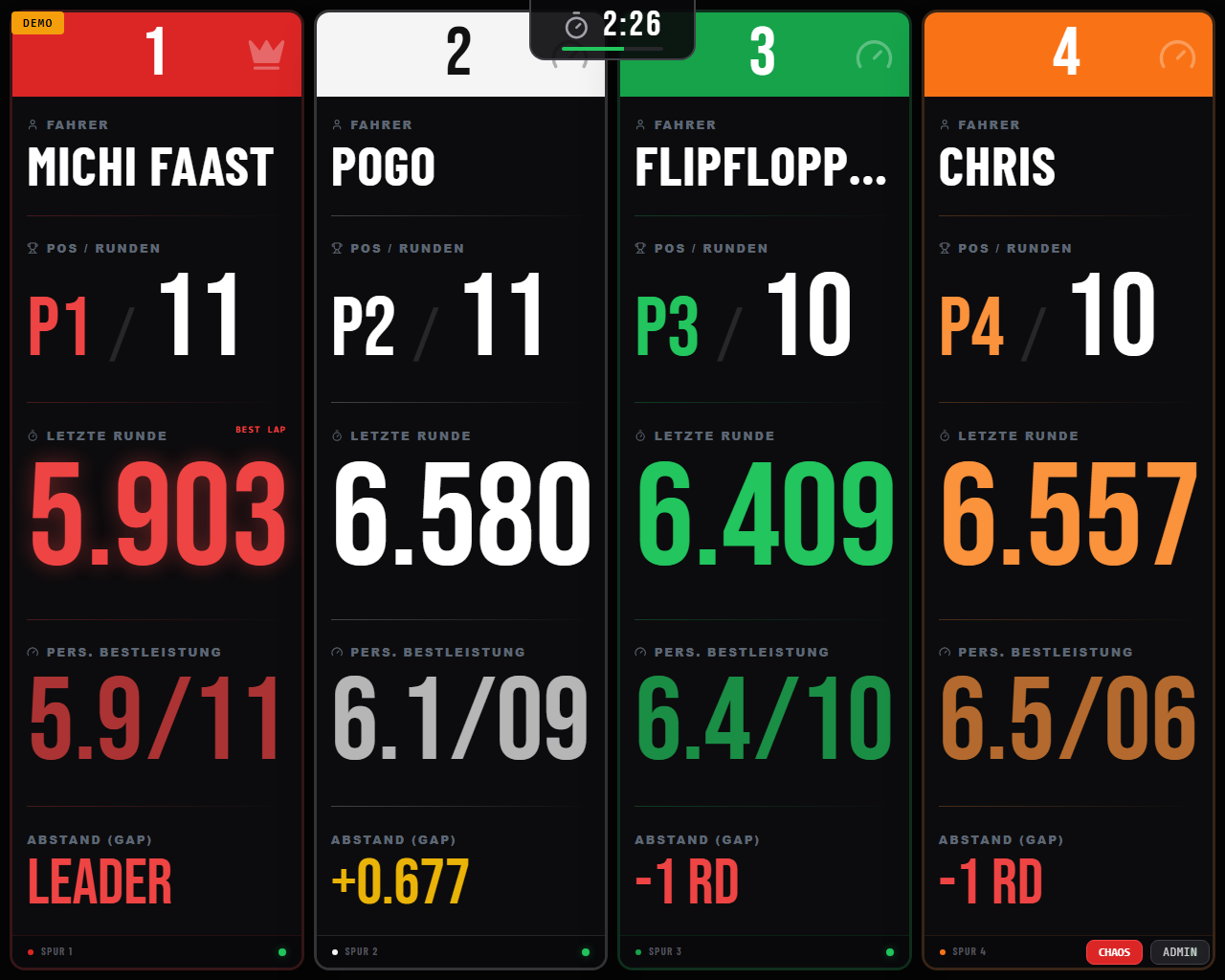
- Lane number (crown = leader)
- Driver name
- Position / lap count
- Personal best — this driver's fastest lap, with the lap it was set on next to it (
RD 05) - Last lap — the largest figure on the tile; flashes briefly on every new lap, the fastest lap of the race glows with a “Best Lap” marker
- Previous laps — the five laps before that, newest at the top, with lap numbers. Shows at a glance whether a driver laps consistently or whether the times vary.
- Gap — LEADER, laps behind (−2 lap) or time behind
Additional displays
- Remaining time at the top centre: time left with a draining bar (timed races) or “Lap x/y” (lap races).
- Overlays: GO!, 3-2-1, TRACK CALL, chequered flag/FINISH per lane, FALSE-START PENALTY, PENALTY TIME, practice break with countdown.
- Sounds: light-sequence steps, GO, track call, race end, new best lap, penalty — can be switched off in the settings. No sound files are needed.
- Bottom-right corner: context-dependent TRACK CALL/CONTINUE or PRINT, and the ADMIN button (hidden in full screen).
The lane order of the display can be mirrored (lane 1 on the right) — Settings → “Lane order swapped”, to match the direction you view the track from.
9Race End, Corrections & Printing
Sequence at the end of a race
- Heat result — the result of the last heat, large, with a countdown bar (duration adjustable).
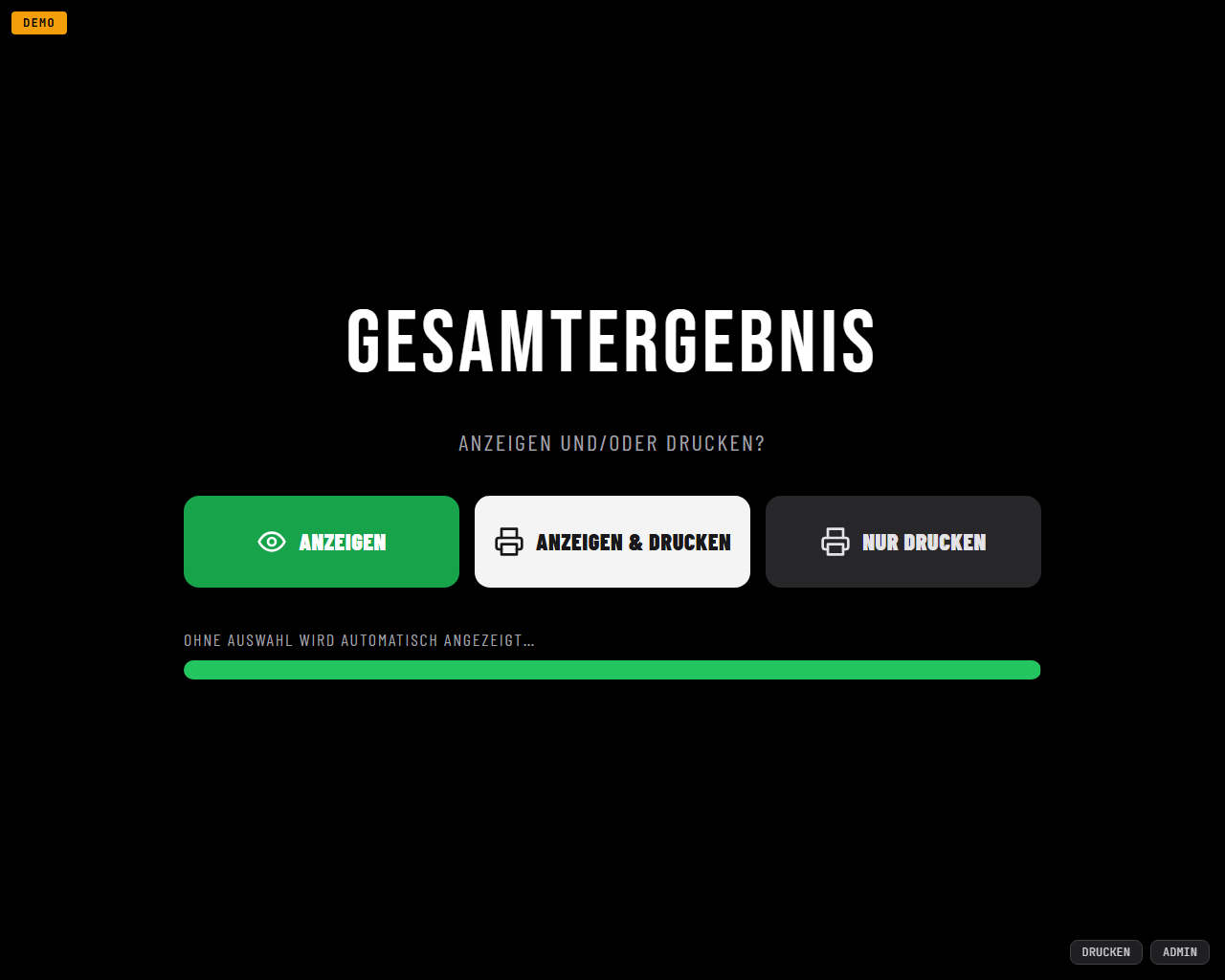
- Print/display choice — Show, Show & print or Print only (silently to the default printer). If nothing is selected, the overall result appears automatically.
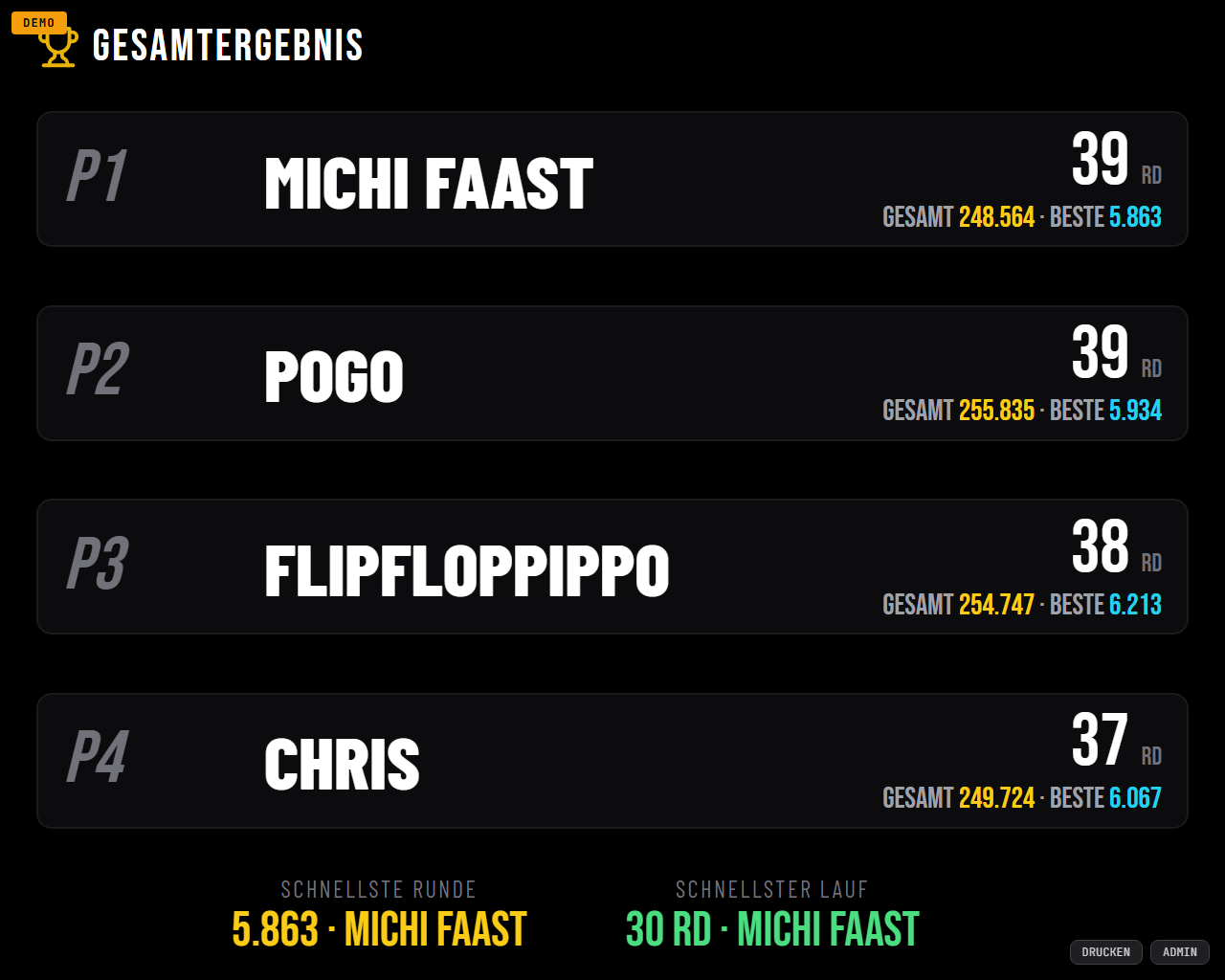
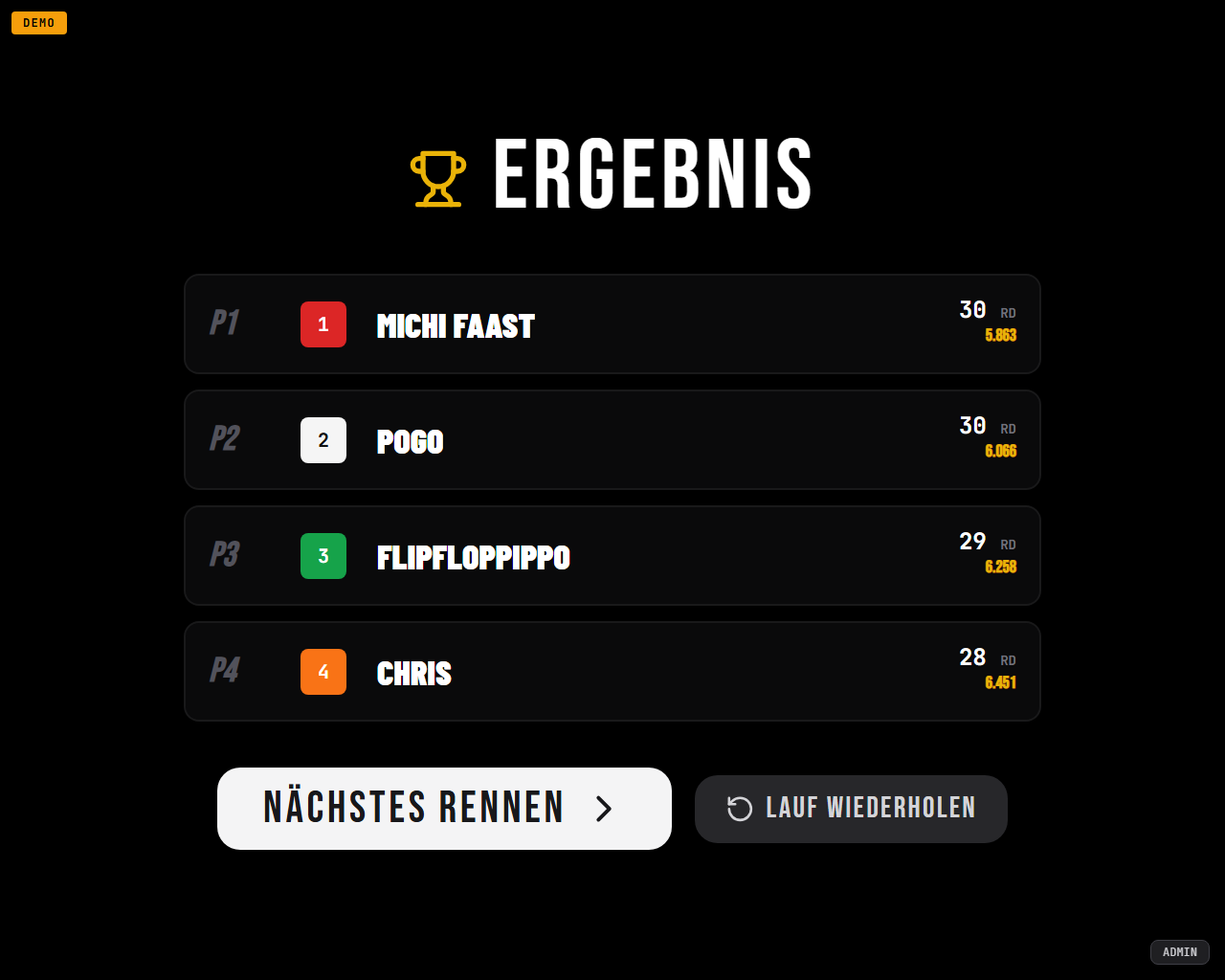
- Overall result — ranking across all heats, fastest lap, best heat. The dashboard shows places 1–4; the full ranking is on the printout and in the cockpit (card “Last overall result”, until a new race is set up).
Between the heats of a series, the dashboard shows the heat result with NEXT RACE and REPEAT HEAT.
Corrections
- Lap correction: one field per driver with the lap count of the last heat,
entered on the keyboard with 2 decimal places —
10.55= 10 laps + partial lap/section 55 (slot mode) or penalties/measurement errors. Then press “Regenerate race result”. - Repeat heat: discards the last heat completely (including from the database) and puts the same line-up back on the grid — possible even after the series has ended.
- Break limit: If a break between heats is set in the settings, the next heat starts automatically after the countdown.
Print options and race name
- The printout contains club/track, best lap, best heat, the overall classification with gaps (“First”/“Next”) and the lane overview. If a lane length is stored in the track profile, it also shows distance and km/h (real and to scale).
- Print options (checkboxes in the result window): short result (without lane overview), with lap times, with track best laps.
- Naming the race: input field in the result window — the name applies to all heats of the series and makes the race easy to find again in the results.
Saving
Every finished heat is saved immediately (crash-safe, survives a power failure). Alternatively, in the settings: Ask first (heats wait for “Save now”) or Never.
10Results
- Ranking (best lap per driver): across all saved races of the active track — with CSV export for Excel.
- Track records: personal best lap per driver. Individually editable (pencil) and deletable; “Delete all” restarts the record list.
- Lane records: the fastest lap ever driven on each lane.
- Team ranking: best lap per team (team races only).
- Saved races: all races with name, date, race type and participants — rename, export as CSV (including all lap times), delete individually or all at once. Deleted races also disappear from the ranking.
- Team races: laps also count for the individual drivers — ranking, track and lane records go to the driver who drove the lap. For saved team races, “Stints” shows who drove when (also in the CSV export).
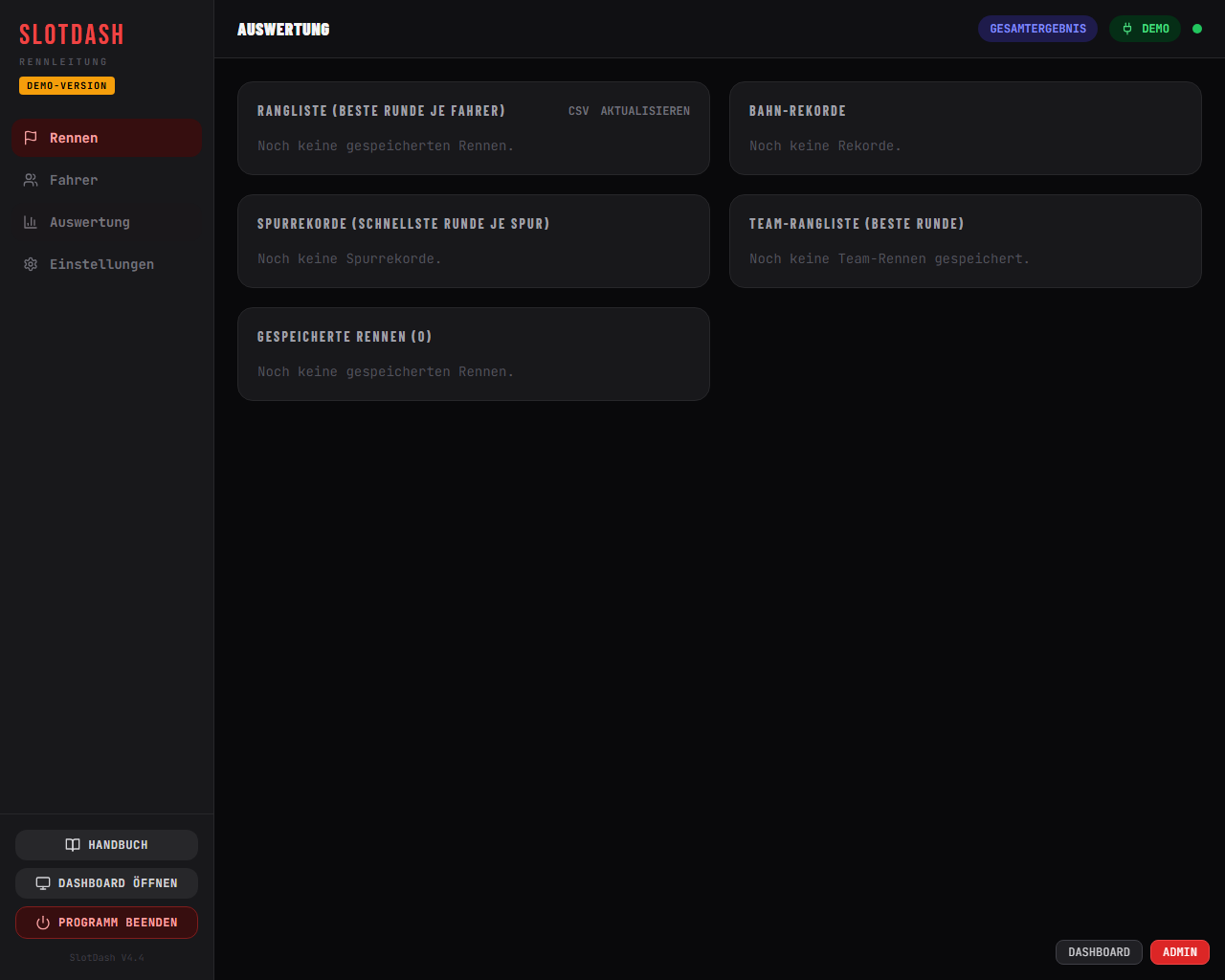
Rankings are fed by the saved races, the record lists by the track/lane records — test times therefore have to be deleted in both places.
11Settings
Club & track
Club, track name, number of lanes, minimum lap time, language (Deutsch, English, Italiano, Español, Français).
Tracks / classes
Multiple track profiles — or one track in several classes (e.g. “Holzbahn NINCO” and “Holzbahn Carrera 1/24”). Each profile has its own minimum lap time, number of lanes, optionally a lane length (for km/h) and a scale — and keeps its own records, rankings and races. Activate switches the profile and applies its lanes + minimum lap time. “Print track data” outputs profiles, best laps and lane records as a sheet.
Race procedure (WinRBM)
| Setting | Effect |
|---|---|
| Start light duration | Length of the light phase (seconds). |
| Start time before GO | Fixed (GO right after the last light) or random time min–max. |
| False-start detection | Penalty (+ penalty time) / Off / Abort. |
| Light control | 5× red · 4× red + green · 1× red / 1× green. |
| Overrun for timed races | Measuring window after the time cut for coasting cars. |
| Result display duration | How long the heat result is shown. |
| Driver rotation | Rotation 1-3-5 (default) or 1-2-3. |
| Group change | When group finished / after every heat. |
| 3-2-1-GO | Big digits at the end of a track call and when a slot-mode series continues. |
| Track power always on | Power released again after the result window (roll to the starting grid). |
| Manual penalty | Duration of the button-press penalty; “After start/finish” only activates it at the next crossing of the start/finish line. |
| Break between heats | 0 = off; otherwise the next heat starts automatically after the countdown. |
| Sounds | Dashboard sounds on/off. |
| Saving heats | Always / Ask first / Never. |
| Lane order swapped | Display mirrored (lane 1 on the right). |
| Team race: stint length | Minimum and maximum length of a stint in minutes (0 = off) — warning on the dashboard, marking in the team standings. |
All race-procedure settings take effect immediately — no restart needed.
Log / errors
Shows the last lines of the server log right in the admin — e.g. why a race ended or a connection dropped.
12Emergency & Troubleshooting
Manual track control (F4 / F5 / F6)
At the very bottom of the cockpit, collapsed: Power ON (F4), Power OFF (F5), Box reset and switching individual lanes (F6) — for car recovery, tests and special cases.
Resuming an interrupted race
During a race SlotDash saves the race state continuously (at least every 2 seconds). If the program is closed in the middle of a race — crash, power cut, window closed — the admin shows the dialog “Interrupted race found” on the next start, with race type, heat, time driven and laps per driver.
- Resume restores the race. A heat that was running is then without power (display “Race restored”).
- Put the cars back on the track, then press “Resume” on the dashboard or “Continue” in the cockpit — 3-2-1-GO follows, race clock and remaining time carry on.
- Discard deletes the saved state. Heats already scored stay in the results.
The time between crash and release does not count. The lap in progress at the time of the crash is lost — the first crossing after resuming is the new starting point. Between two heats all scored heats and the overall standings are kept. Practice is not saved.
Frequently asked questions
| Problem | Solution |
|---|---|
| No box found | Check cable/power supply, try a different COM port (Settings → Connection), “Search for box automatically”. The red LEDs on the electronics must be lit. |
| Laps count double | Minimum lap time too low — raise it to a value just below the fastest real lap. |
| Laps missing | Check the photocell (hold it against the light — the input LED must react); minimum lap time must not be higher than the fastest real lap. |
| Car won't move at the start | False-start penalty active? (shown on the lane). Otherwise power the lane individually in the emergency panel. |
| Wrong result | Lap correction in the result window (chapter 9) — or “Repeat heat”. |
| No printout | Check the default printer in Windows; “Print only” uses silent kiosk printing. |
| Test data in the lists | Results: delete races and best laps (chapter 10). |
| Program not responding | Check the console window, close the program via “Exit program” or, if necessary, Task Manager and restart — the data is stored crash-safe. |
Backups
Regularly copy %APPDATA%\SlotDash\slotdash.db to a USB stick —
that is the complete backup (drivers, races, records, settings).